 By Amotion AI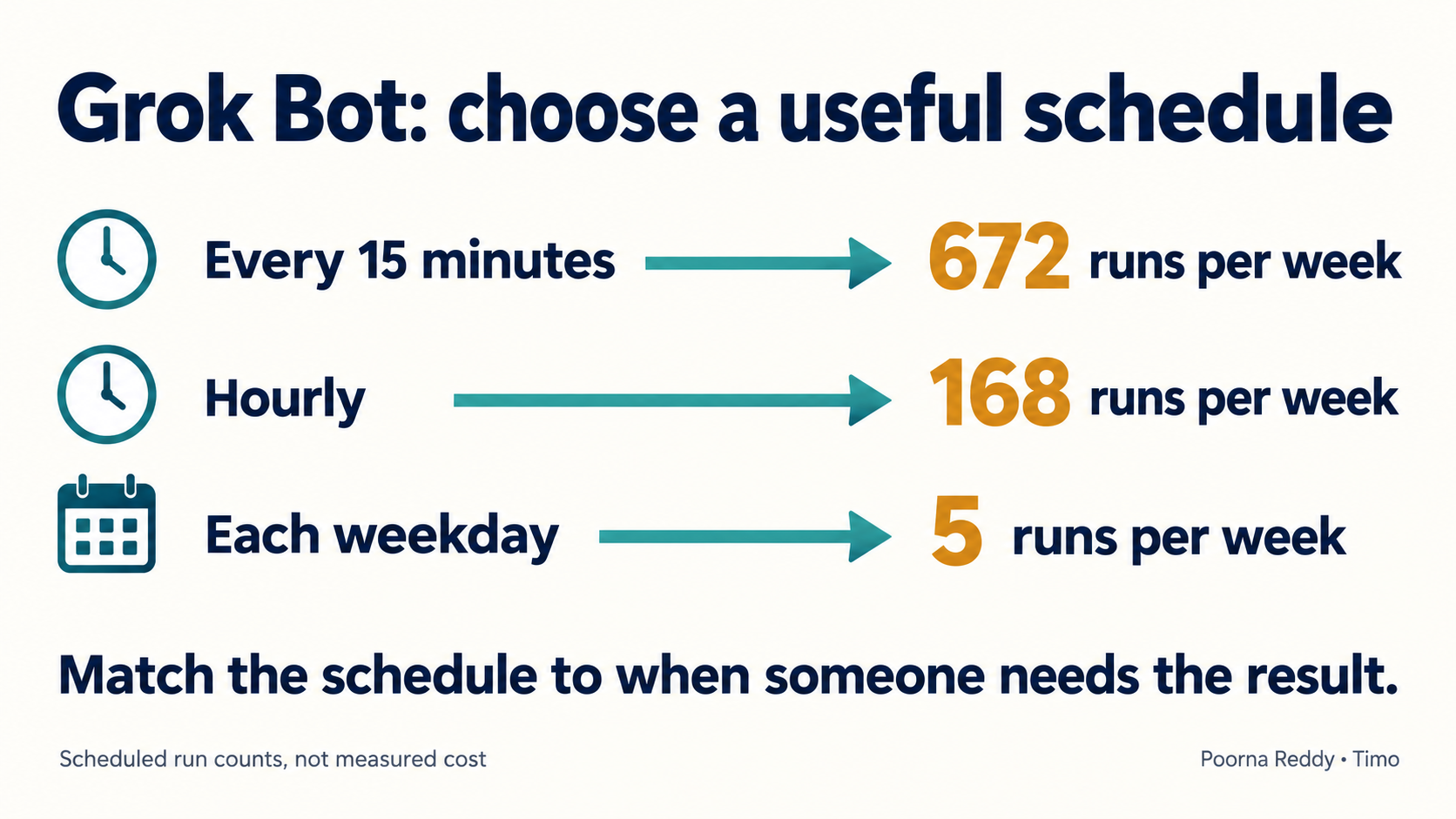
A Grok Bot routine is a task that runs on a schedule. If a manager reviews contract renewals each weekday morning, one run before that review may be enough. Decide how often the task needs to run, limit how many records it reads and check the usage it consumes.
Running the same task every fifteen minutes schedules 672 runs a week. Running it once each weekday schedules five. The cost depends on the work each run performs; the schedule tells you how often that work could happen.
The counts below are calculated examples. I have not measured the cost of a Grok Bot run, so they should not be used to predict a bill.
Check included usage and extra charges
Grok Bot has a weekly usage allowance. After you use it up, optional on-demand usage lets work continue at an extra charge through Cursor. You can set a monthly limit for that extra usage. If on-demand usage is off, further work stops until the weekly allowance resets.
A Cursor plan and a linked SuperGrok or X Premium+ grant do not add their Grok Bot allowances together. The monthly on-demand limit is also not an exact mid-run cutoff: an active run can finish beyond it. Verify these settings on the account that will own the workflow before making a budget commitment. Plans and billing.
Before scheduling work, check the account’s allowance and whether extra spending is enabled. Name the person who will handle a missed report if the account runs out of usage.
Count the schedule before estimating the cost
Suppose an operations manager checks a list of contract renewal deadlines every weekday morning. The contract file changes occasionally. Rebuilding the same list throughout the night is unlikely to help that morning review.
| Illustrative schedule | Calculation | Scheduled runs per week |
|---|---|---|
| Every fifteen minutes, all day | 4 × 24 × 7 | 672 |
| Hourly, all day | 24 × 7 | 168 |
| Once each weekday | 1 × 5 | 5 |
| Monday, Wednesday and Friday | 1 × 3 | 3 |
One run may read three records; another may read hundreds or spend time retrying a failed login. Measure the intended task before estimating its cost in dollars.
Match the schedule to when someone needs the result. A report shortly before a 9 a.m. meeting may be enough. If the task must respond as soon as a record changes, investigate an event trigger, which starts work when that change occurs.
Tell the routine what to read and when to stop
A useful first routine could read the current approved contract export and update a draft watchlist. Define what “current” means, how many records it may inspect and what it should return when it cannot complete the work.
Save an export your organization permits you to use in a folder for this task. Bots on the same account can access the cloud computer’s files and signed-in accounts. Separate Bot names do not keep client data apart. Decide which files and account connections to remove when the task ends. Computer and apps.
You could give the Bot these instructions:
Owner: Renewal reviewer Bot.
Schedule: 08:00 every Monday through Friday, Asia/Dubai.
Input: the approved contract export dated for the current business day.
Work limit: inspect at most 25 records per run.

Return a draft watchlist with source IDs, renewal dates, notice deadlines
and missing terms. If there are more than 25 records, state how many
remain and request a decision about the remaining batch.

If today's export is missing, report that fact. Do not silently reuse
yesterday's export. Stop if authentication fails; do not retry the
whole workflow repeatedly. Never contact suppliers or change contracts.
Report the input date, records inspected and any incomplete work.
Twenty-five records and one weekday run are example limits. Choose limits your team can review, then test whether the Bot follows them. A written instruction alone cannot enforce a usage cap.
To create the scheduled task:
- Complete and check the one-time renewal task with fictional records.
- Ask that Bot to save the working method as a skill named “Renewal watchlist review,” including the source checks and restrictions on actions.
- Ask the same Bot to create a routine using that skill and the specification above.
- Inspect the proposed routine. Confirm its owning Bot, schedule and time zone, input location, output destination, approval rules and behavior when the source is missing. Check the displayed next run.
- Use Test run with the fictional source, and inspect the resulting work and actions. A test performs real work. Enable the recurring schedule only after that review passes, then confirm the routine is enabled.
A skill saves the instructions for doing the task. A routine starts that task on a schedule. Keeping those instructions unchanged makes it easier to work out why a later run failed. The steps follow the current skills and routines documentation.
Make incomplete work visible on the next run
A limit of 25 records can create a hidden backlog if every run starts again at record one. Give each record a stable ID and retain the source version, IDs already checked, IDs still waiting and the reason any item was skipped. A later run should use that record to continue the agreed batch, while rechecking items whose source terms changed.
For a fictional 60-record export, the first run can report “25 reviewed; 35 waiting.” The next approved batch can review 25 more and leave ten. Those counts describe completion only; they do not prove that the extracted terms or dates were correct. The owner still reviews the output.
Set a deadline for failure reporting before the meeting. If an 08:00 routine is expected to prepare a 09:00 review, an example operating rule could require an incomplete-work message by 08:30. Confirm that the implemented workflow can produce that message even when the main run fails. The prompt alone does not create a separate failure monitor.
The current documentation says each routine retains its 20 most recent run records. Save any evidence your business needs for longer in an approved durable location. At five runs per week, 20 records represent four weeks; at 672 runs per week, that history can turn over in about five hours. These are schedule calculations, not guaranteed retention periods. Routine management.
Record usage, mistakes and unfinished work
For the first few approved runs, record the following:
| Field | What it helps you decide |
|---|---|
| Input date and source | Whether the output is current enough for the decision |
| Records attempted and completed | Whether the work limit fits the actual queue |
| Run duration and available usage readings | Whether the workflow is sustainable on the chosen account |
| Corrections required | Whether automation is saving meaningful review effort |
| Missing data, login failures and retries | Why work was incomplete or unexpectedly expensive |
| Owner action taken | Whether anyone used the result |
If the account exposes only a percentage meter, record that limitation. Do not present percentage changes as a precise dollar cost. Likewise, a short run is not necessarily a useful run: a report that requires extensive correction may consume more staff time than it saves.
Before adding more work, test a normal file, a larger file and a missing file. Check whether each result tells the manager what was completed and what still needs attention.
Check why a scheduled task did not finish
When a scheduled result does not arrive, inspect whether the routine is enabled, the time zone is correct, its owning Bot exists and its connections remain authenticated. Then check whether the Bot can open the source file and whether the account has usage remaining. The current troubleshooting guide separates these causes. Routine troubleshooting.
Do not create a duplicate routine merely because the result is late. First establish whether the original is still active or waiting for a person. Two copies can create duplicate work without fixing the underlying failure.
A clear failure message is a useful output. “Today's export is unavailable; no current watchlist was produced” tells the manager to use a manual process. An old report presented as current hides that need.
Questions about routine cost and control
Will closing my laptop stop a scheduled run?
Grok Bot runs this work in its cloud environment. Closing the laptop is not a way to pause a routine. Use the routine's controls and confirm its state. Grok Bot overview.
Can I combine two subscriptions to double the allowance?
The current billing documentation says the grants do not stack. Use the account's actual allowance and spending controls in your plan.
Does a successful test mean the workflow is ready for unattended changes?
A successful draft test shows how the Bot handled that task. Sending a message or changing a contract requires separate permission and checks. Test whether the Bot stops for approval before allowing either action.
The first-task guide provides a small renewal example before you add a schedule. For further practical examples of buying and operating AI, follow me on LinkedIn.