 By Amotion AI
This guide shows you how to let Claude Code read a GitHub issue and summarise its status without editing the issue or adding a comment. You will connect Claude Code to GitHub, give it permission to read the issue, and compare its answer with the original.
You need Claude Code installed and signed in, a GitHub account that can read the chosen repository, and permission to connect that repository to Claude Code. The token setup below uses macOS Terminal with the zsh shell. The GitHub issue and expected answer shown later are fictional examples for learning; they are not a report of a live integration test.
What an MCP server connects
Model Context Protocol, or MCP, is a standard way for an AI application to use tools provided by another service. Here, GitHub's MCP server provides the tools that Claude Code uses to read an issue and its comments.
The diagram follows fictional issue #42, “Intermittent login failure,” in a sample repository. It shows who requests the information, who checks access and who checks the answer.
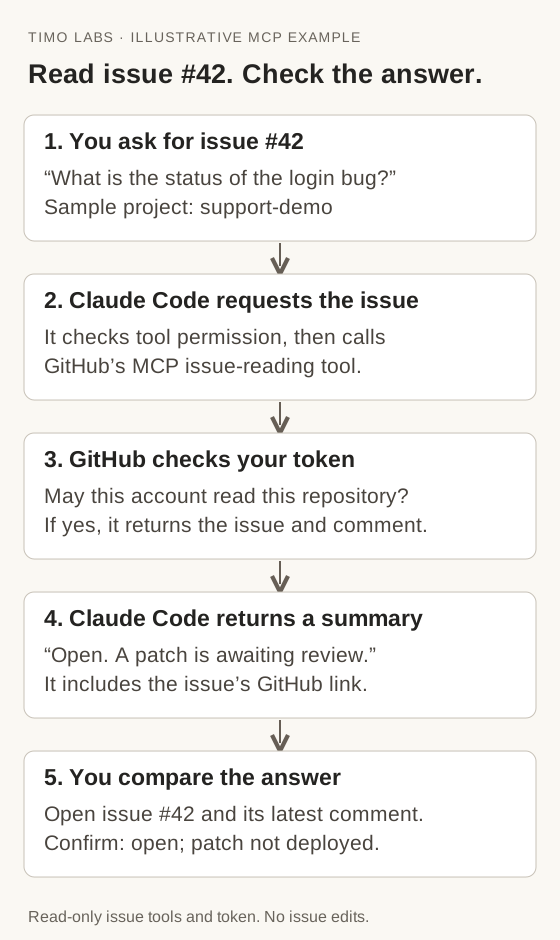
In MCP terminology, Claude Code is the host, the application you use. Its client sends requests to GitHub's server, which exposes the issue-reading tools. The MCP architecture documentation explains these roles. Connecting the systems lets Claude request information; you still need to verify which issue it read and whether the summary is accurate.
Preparing for the CCAR-F exam? See the study guide for task statement 2.4: MCP server integration.
Who should use this connection: you or your team?
The configuration scope determines where Claude Code makes a saved connection available. Choose Local for yourself in one project, Project to share the definition with your team, or User for yourself across projects. Sharing a definition does not share your GitHub account or grant another person access to a repository.
| Scope | Who uses this configuration? | Where is it stored? | Suitable use in this example |
|---|---|---|---|
| Local | You, in the current project. | The project's entry in ~/.claude.json. |
Try the issue integration before sharing it. |
| Project | People who receive the project's configuration. | .mcp.json at the project root. |
Give the team the same connection definition. |
| User | You, across your projects. | The top-level MCP configuration in ~/.claude.json. |
Use a personal connection in several repositories. |
These locations assume the default configuration directory. Local is the default scope. The Claude Code MCP reference documents the three choices. This walkthrough uses Project scope, so you can see the shared file; each teammate must supply their own credentials.
Keep server definitions separate from general Claude Code settings. Shared permission rules belong in .claude/settings.json; personal project settings belong in .claude/settings.local.json. These files control Claude Code's behaviour, while .mcp.json defines the server connections. The settings guide explains their locations and precedence.
Configure a read-only GitHub issue connection
The setup has three steps: create a token with read-only access, save the connection definition, and check that Claude Code can use it. You will then ask for one issue and compare the answer with GitHub.
GitHub provides a hosted MCP endpoint specifically for issue tools. Adding /readonly restricts the tools offered by that endpoint to read operations. This avoids starting the exercise with issue-editing tools that the task does not need. See GitHub's remote MCP server documentation.
1. Create a GitHub token with read-only issue access
A personal access token is a secret that lets an application use your GitHub account with the permissions you choose. Claude Code needs one in this example so GitHub can identify your account and check whether it may read the selected repository.
Create the token in GitHub:
- Open Settings → Developer settings → Personal access tokens → Fine-grained tokens, then choose Generate new token.
- Give it a name and an expiry. Under Resource owner, choose the account or organisation that owns the repository.
- Under Repository access, choose Only select repositories, then select the repository for this exercise.
- Under repository permissions, set Issues to Read-only. Leave write permissions disabled.
GitHub also includes basic read-only repository metadata access. See GitHub's token creation instructions and issue-reading permissions.
Generate the token and complete any organisation approval that GitHub requires before using it for private issues. Keep the token value out of repository files, chat messages and screenshots. GitHub makes its MCP server available across plan types, so this basic issue-reading exercise does not require a paid Copilot subscription. Tools for paid features retain their own subscription requirements. GitHub MCP access requirements.
In macOS Terminal, start a zsh session for this exercise:
/bin/zsh -f
In that session, first turn off command tracing, then run the hidden input prompt below. Paste the token only when the terminal asks for it, and press Return. The pasted characters will not appear on screen. They are input to the prompt, not a shell command saved in command history.
unsetopt XTRACE VERBOSE
read -rs 'GITHUB_MCP_TOKEN?Paste your GitHub token, then press Return: '
print
export GITHUB_MCP_TOKEN
Check that a child process can receive the variable without printing its value:
if /bin/sh -c 'test -n "$GITHUB_MCP_TOKEN"'; then
  print 'Token is available to programs launched here.'
else
  print 'No token was entered. Run the hidden prompt again.'
fi
This checks that a value is present, not whether GitHub will accept it. The zsh command reference documents silent input and exporting variables. Keep this terminal open for the remaining steps and launch Claude Code from it, so Claude receives GITHUB_MCP_TOKEN. A separate terminal or a desktop-launched process does not automatically receive this value. Use the secret-management method approved by your team if it requires a different setup.
2. Add the project configuration
At the project root, create .mcp.json with this entry. If that file already contains servers, add github-issues under its existing mcpServers object instead of replacing the file.
{
  "mcpServers": {
    "github-issues": {
      "type": "http",
      "url": "https://api.githubcopilot.com/mcp/x/issues/readonly",
      "headers": {
        "Authorization": "Bearer ${GITHUB_MCP_TOKEN}"
      }
    }
  }
}
The URL is GitHub's documented endpoint. github-issues is the name chosen for this connection. ${GITHUB_MCP_TOKEN} tells Claude Code to read the token from the named environment variable. Claude Code supports variable expansion in MCP headers; the http type identifies the remote transport. Claude Code MCP configuration.
Review the file before committing it. Teammates receive the connection definition and must supply their own authorised credentials.
3. Check the connection
In the same terminal where you entered the token, change to your project directory. Replace the example path with your own, then run:
cd "/replace/with/your/project"
claude mcp list
claude
The final command opens Claude Code interactively. Review any project-server approval, then use /mcp to inspect the connection. These checks follow Anthropic's MCP quickstart.
Work through the result rather than repeatedly changing the configuration:
| What you see | What to check next |
|---|---|
| The server is absent. | Confirm the project directory, JSON syntax and server name. |
| Approval is pending. | Review the project-server request in an interactive session. |
| Authentication is required. | Check that the token reaches Claude Code and has not expired. |
| The connection fails. | Inspect the reported detail, then check the endpoint and network access. |
| The server connects but cannot list tools. | Inspect the tool-discovery error before attempting the issue lookup. |
The exact labels can vary with the installed Claude Code version. The important distinction is which stage failed.
Verify one result before asking for a larger task
Choose an issue in the authorised repository that you can also inspect directly in GitHub. Replace the brackets in this illustrative prompt with its actual owner, repository and number:
Use the github-issues MCP server to read issue [number] and its latest comment in [owner/repository]. Report its title, current state, assignees and URL. Then summarise the problem in three sentences. If any field is unavailable, say so. Do not change the issue or add a comment.
Check that Claude used the named MCP connection. Then compare the returned title, state and assignees with the issue page. Open the returned URL and make sure it identifies the same issue.
Illustrative issue and expected answer
The following issue is fictional. It shows what to compare after running the lookup on an issue you are authorised to read; it is not a live result or a repository to connect to.
| Field in the fictional GitHub issue | Sample value |
|---|---|
| Repository and issue | example-team/support-demo, issue #42 |
| Title | Intermittent login failure |
| State | Open |
| Assignee | maya-example |
| Issue body | Some users cannot sign in after their session expires. Retrying sometimes succeeds. |
| Latest comment | A patch has been submitted and is awaiting review. It has not been merged or deployed. |
| Issue URL | https://github.com/example-team/support-demo/issues/42 (fictional example) |
For those inputs, a suitable answer would look like this:
Issue #42: Intermittent login failure
State: Open
Assignee: maya-example
URL: https://github.com/example-team/support-demo/issues/42 (fictional example)
Some users cannot sign in after their session expires, and retrying sometimes succeeds. A patch has been submitted and is awaiting review. It has not been merged or deployed, so the issue remains open and a fix is not yet confirmed.
Compare the title, state, assignee and URL with the issue you actually read. Then compare each summary sentence with the body and latest comment. In this illustration, “a patch is awaiting review” is supported; “the bug is fixed” is not. If your real issue has no comments or assignee, the answer should report that instead of inventing one.
Record the issue checked, the time of the check and any mismatch. That gives a teammate enough information to repeat the exercise. Once you have confirmed a lookup, that request can help diagnose a later failure in the connection, access rights or summary.
After finishing the exercise, quit Claude Code and run unset GITHUB_MCP_TOKEN in the same terminal. Run exit to leave the temporary zsh session. Unsetting the variable removes it from that shell; revoke the token in GitHub when you no longer need it.
Keep connection approval, tool permission and data access separate
Three questions explain why a connection can be present while a request still fails:
- May Claude Code load this project connection? In this walkthrough's interactive session, you review the project-server approval. Your organisation may also restrict which servers Claude Code can use.
- May Claude call this tool? Claude Code checks its tool-permission rules and may ask you to approve the call. Your personal, project and organisation settings determine the applicable rules.
- Does your GitHub token allow it to read this repository? GitHub checks the account behind the token, its repository permissions and any required organisation approval. Approving a call in Claude Code cannot grant missing GitHub access.
These checks are called project-server approval, tool permission and data access. They control different stages of the same request.
Claude Code permission rules can target a whole MCP server or an individual tool. Inspect the actual tool name before writing a rule; a name guessed from the server's label may not match. The permissions documentation gives the supported naming syntax.
For this issue-summary exercise, use read-only credentials as well as the read-only endpoint. The endpoint limits the tools this connection exposes, while the credential limits the identity's authority at GitHub. If someone later changes the connection to an endpoint with write tools, the credential should still lack the authority to edit an issue.
This follows the principle of granting only the access the task needs. MCP's security guidance explains why broad permissions increase the consequences of a compromised token.
If your task later includes approving refunds, updating customer records or deploying code, design those controls explicitly. Timo's guide to an enterprise Claude safety stack covers that broader architecture.
FAQs
Does my teammate get access when I commit .mcp.json?
Your teammate receives the connection definition. In this example, they must also provide their own GitHub token with access to the repository and complete any required approval. Sharing the file does not grant the GitHub permissions used by your account.
Why can Claude connect to GitHub but fail to read a private issue?
A connection can succeed while the identity lacks permission for a particular repository. Check the repository selected for the token, its read permissions and any pending organisation approval. Confirm that the prompt contains the correct repository and issue number before broadening access.
Does a read-only MCP endpoint make every tool in Claude Code read-only?
It limits the tools supplied by that endpoint. Other connections and built-in tools retain their own capabilities and permissions. Review those separately if the entire session must be restricted to reading. GitHub's server configuration guide describes the scope of its read-only mode.
Should I build a custom MCP server for this workflow?
Begin by checking whether an existing server can perform the required lookup with acceptable access controls and results. The GitHub endpoint already covers the issue-reading task used here. A custom server becomes worth evaluating when you need a specific business operation, data boundary or system integration that the available server cannot provide. Document that missing requirement before committing to development and maintenance.
How can Timo help me practise MCP integration for Claude certification?
Use Timo's Claude Architect Foundations study guide to place MCP integration within your wider preparation, then work through the CCAR-F mock exam preview. The preview contains original Timo practice questions with explanations. Use your answers to identify which decisions you need to practise; it does not establish your official exam score.
If your employer is not a Claude partner, Timo is run by Amotion AI, a member of the Claude Partner Network, and provides an application route for individual consultants seeking partner learning and certification access. Read how to register without a partner employer for the application, consultant agreement and account process. Enrollment provides an individual account for the permitted partner learning and certification registration services. Anthropic's official exam fee remains separate.